Having trouble joining your scheduled Stavvy Meeting? This guide covers how to find your meeting link and resolve common connection issues.
Prerequisite Checklist
- Review the Stavvy Technical Requirements to ensure your browser, device, and connection are supported.
- Turn off any VPNs: Active Virtual Private Networks (VPNs) block Stavvy video streams and must be disabled before joining.
Where is the URL or Link to my meeting?
You can find your meeting link in three places:
- Invitation Email: Look near the top of your initial meeting invitation email for a direct link (Join Meeting) or the Join Meeting button.
- Calendar Event: If you added the meeting to your personal calendar (Google, Outlook, etc.), the link is included in the event details.
I didn't receive a Meeting invitation Email
Search your inbox: Search for emails with the subject line or keywords "Remote Signing". Check your spam or junk folders.
Contact your host: If you still cannot find it, contact the notary, attorney, or settlement service you are working with so they can resend the invitation to your correct email address.
I have the link, but I still can't access the meeting.
If clicking the link doesn't bring you into the session, follow these steps:
- Disable your VPN: Confirm it is completely off.
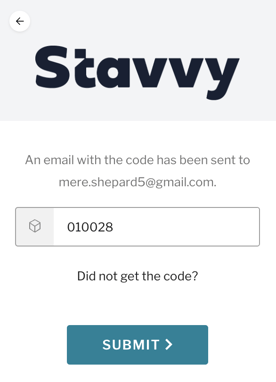
- Verify your email address: On the login entry field, ensure the pre-filled email address matches the exact email address where you received the original invitation.
-
Complete Multi-Factor Authentication (MFA):
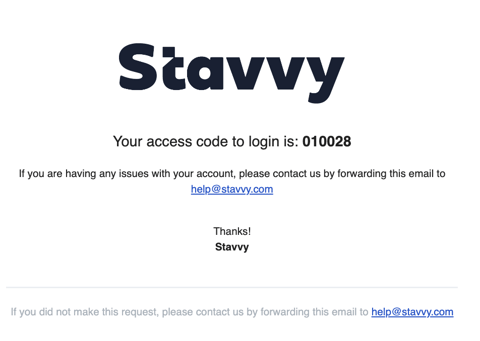
- When you click the link, you will be prompted for a One-Time Passcode (OTP).
- Check your email for this code, enter it into the prompt, and proceed.
Why am I stuck on the waiting page?
After entering your passcode, you will land on a waiting screen.
- The session is host-controlled: Meetings do not start automatically at the scheduled time. The notary running the session must manually start the meeting.
- Automatic update: The page will continuously check the status and automatically display the Ready to Join screen as soon as the notary begins.
- Testing your setup: While waiting, click Test your audio and video to ensure your camera and microphone are working properly.
- Next steps: If you have been on the waiting page for a substantial amount of time past your scheduled appointment, reach out directly to the notary or the organizer of your meeting.
Comments
0 comments
Please sign in to leave a comment.