If you need to purchase your Digital Certificate, please review this guide.
For MacOS instructions, click here
Downloading Your IdenTrust Certificate
IdenTrust has instructions here: Retrieving Your Software Certificate
- Click the link www.identrust.com/install in the email from Identrust.
- Click the I'm Ready - Please Check if My System is Ready button.
- Enter your Activation Code (from the email) and the Account Password created when you purchased the certificate.
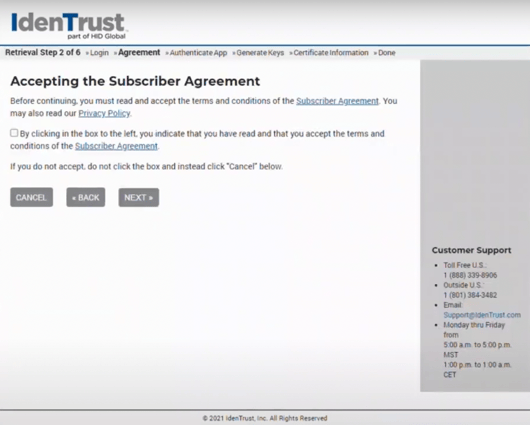
- Click the checkbox to agree to the Agreement and click Next.
- Download and Run the IdenTrust Retrieval Application
- Drag the key from the Identrust site over to the lock in the Application, or click Copy Key below the key, and paste it into the Application
- Once authenticated, click Generate Keys
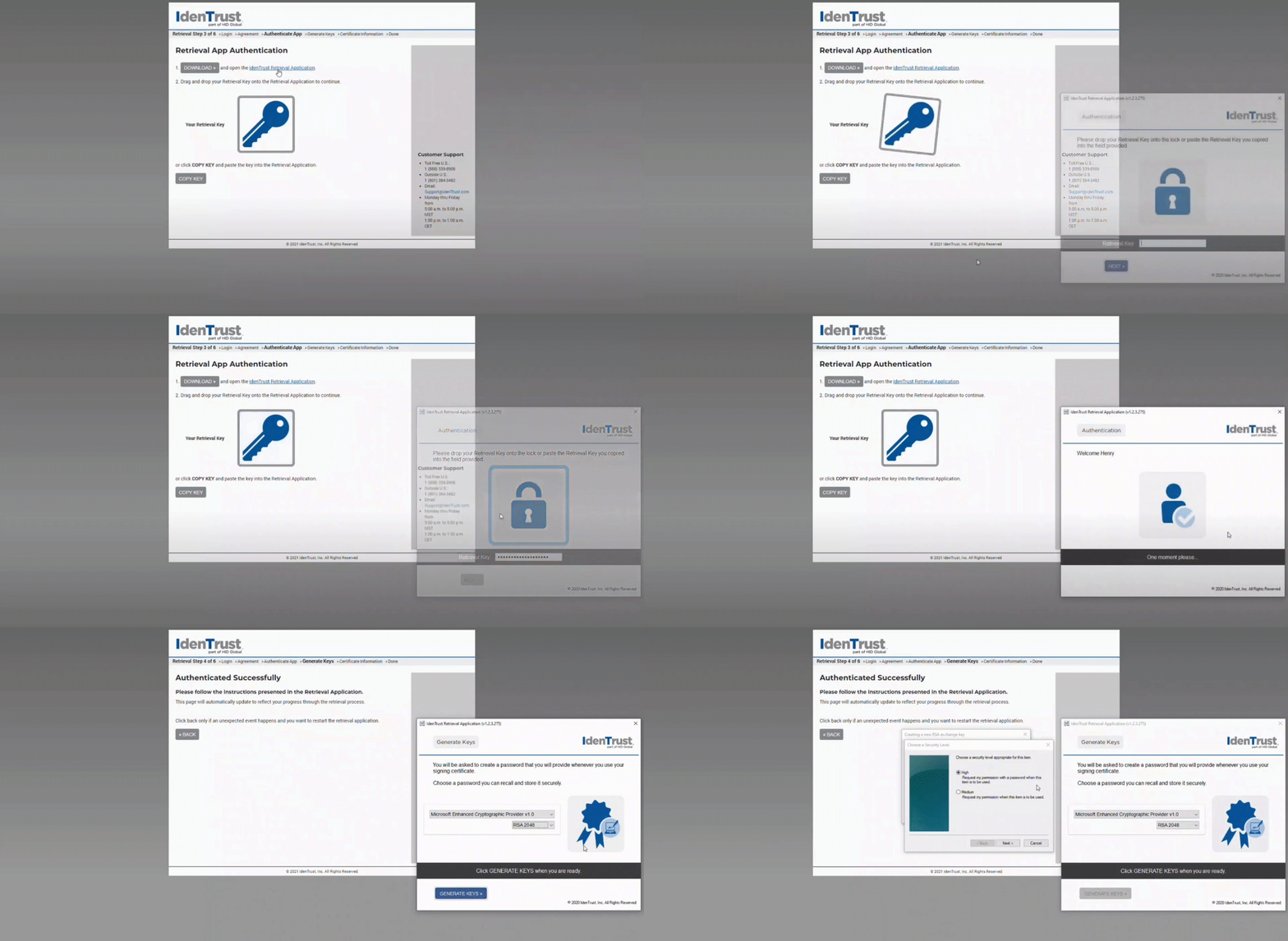
- Select the security level for your certificate. Important: Select Medium! Selecting High will result in an error in Stavvy.
- Click Next, then Finish, and finally OK. The system is now downloading your IdenTrust certificate. IdenTrust has two types of certificates, encrypted and non-encrypted. Non-encrypted is what Stavvy requires. It is optional to download the encrypted certificate.
- Backup your certificates (recommended)
- Select which certificate to back up: Signing or Encrypted. Export all extended properties.
- Click Next, and then create a password for your backup.
- Select where your backup should be stored, such as your Desktop.
- Click Next, then Finish, and then OK.
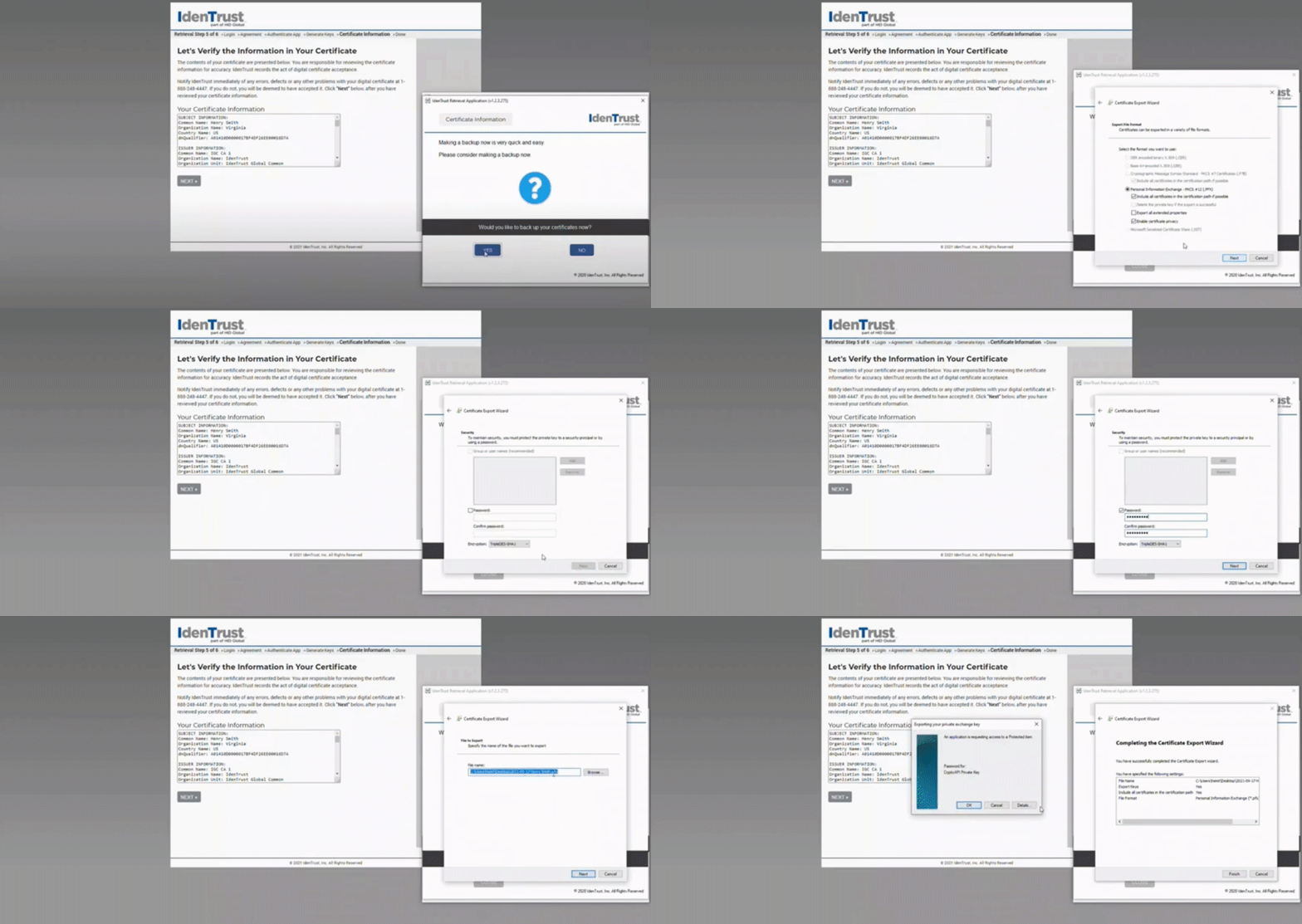
- Repeat the steps to back up your encrypted certification as well. Once you have backed up your certificates, click Close.
- On the next screen in the application, you can test the certificate if needed. When finished, you can click Done.
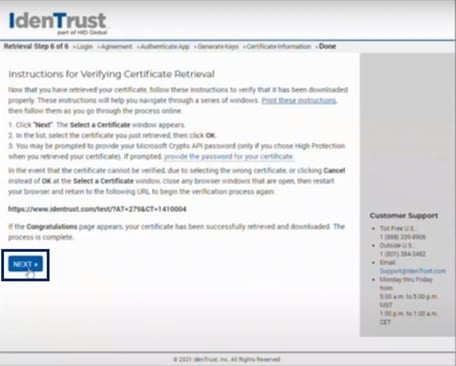
- On the Identrust website, verify that the certificate has been downloaded correctly, then click Next.
To verify the certificate, please close all your browsers. Once you've done this, your certificate will be ready within your IdenTrust Account.
Adding the Certificate to your Notary Profile
- Log in to connect.stavvy.com
- Click on your name at the top right corner, click Settings
- Click the Notary tab.
- Go to Step 4: Digital Certificate and click on Upload Document, and locate the non-encrypted version of your certificate on your computer.
- Next, enter the certificate password. This is NOT your IdenTrust account password.
- When complete, the screen should say it was successfully uploaded.
NOTE: Wait 20-30 seconds for the upload to complete and the screen to update.
Watch the video demonstration here
If you have any questions about your certificate, please reach out to IdenTrust directly:
Phone: 1 (888) 339-8904
Email: Support@IdenTrust.com
Help Center: Click here
Comments
0 comments
Please sign in to leave a comment.