Skip to main content
Servicer/Lender Foreclosure Order Overview
Follow this Guide to the Foreclosure orders process from the perspective of the Servicer/Lender.
Foreclosure Process in Stavvy
1. Initial Order review - Servicer/Lender
-
Order is Created/Assigned
- Once an Order is created by the Attorney/Firm and assigned to your account, your account admins will be notified via email
- Click on the link in the notification email to access the Order
- OR, within Stavvy: from the left-hand panel, select Orders > Servicing > Pending, and find the appropriate address listed
- Click Accept on the Order
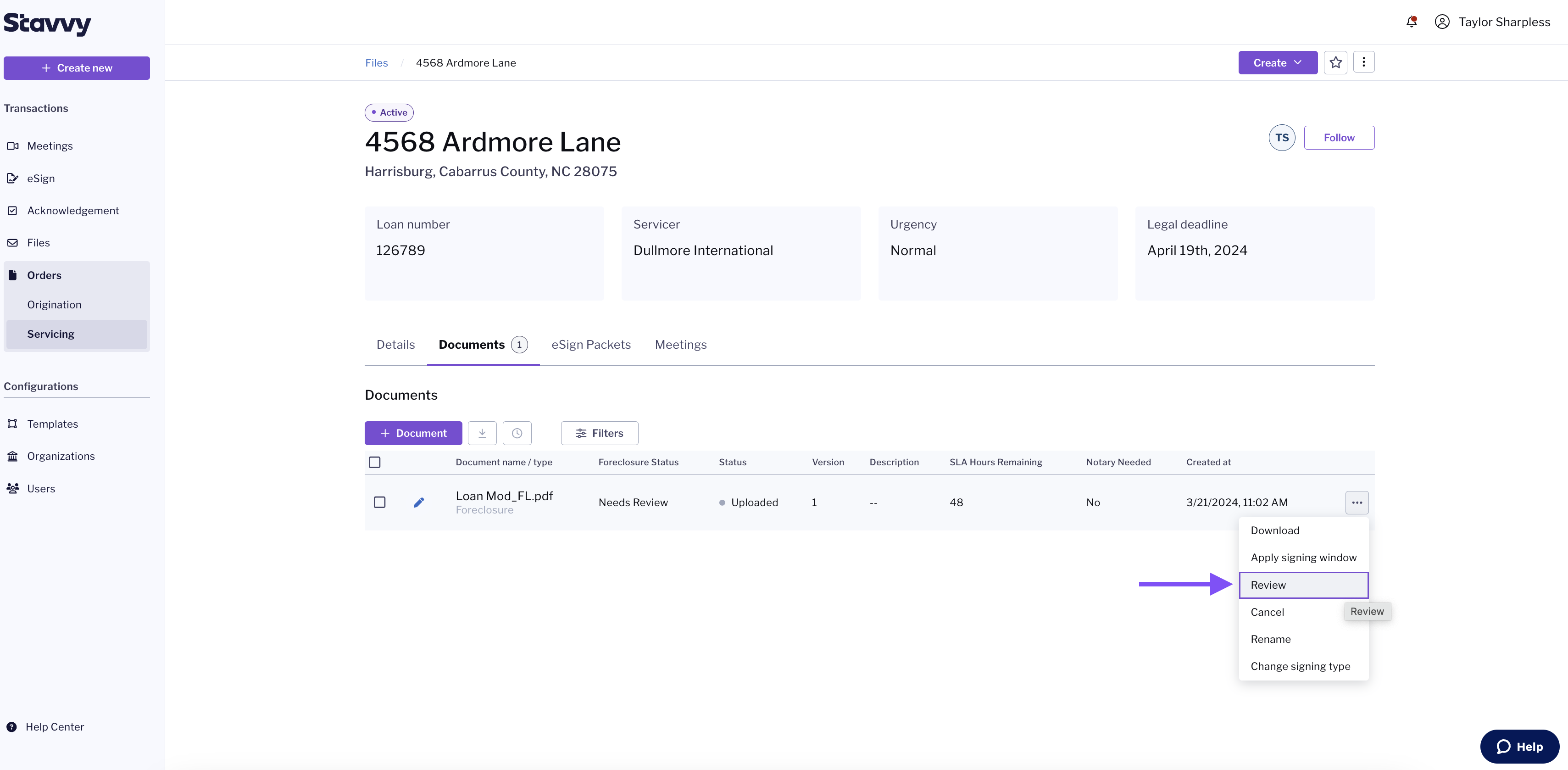
- Click on the Documents tab
- To review the Order click the Actions button and select Review from the dropdown
2. Conduct initial document review
- If no changes are needed, select Approve under Quality Control Review on the left to move forward
- If revisions or corrections are needed
- Go to the Comments on the top right of the screen and select +Add
- Drag the marker and place where corrections are required, in the text box advise what needs to be corrected
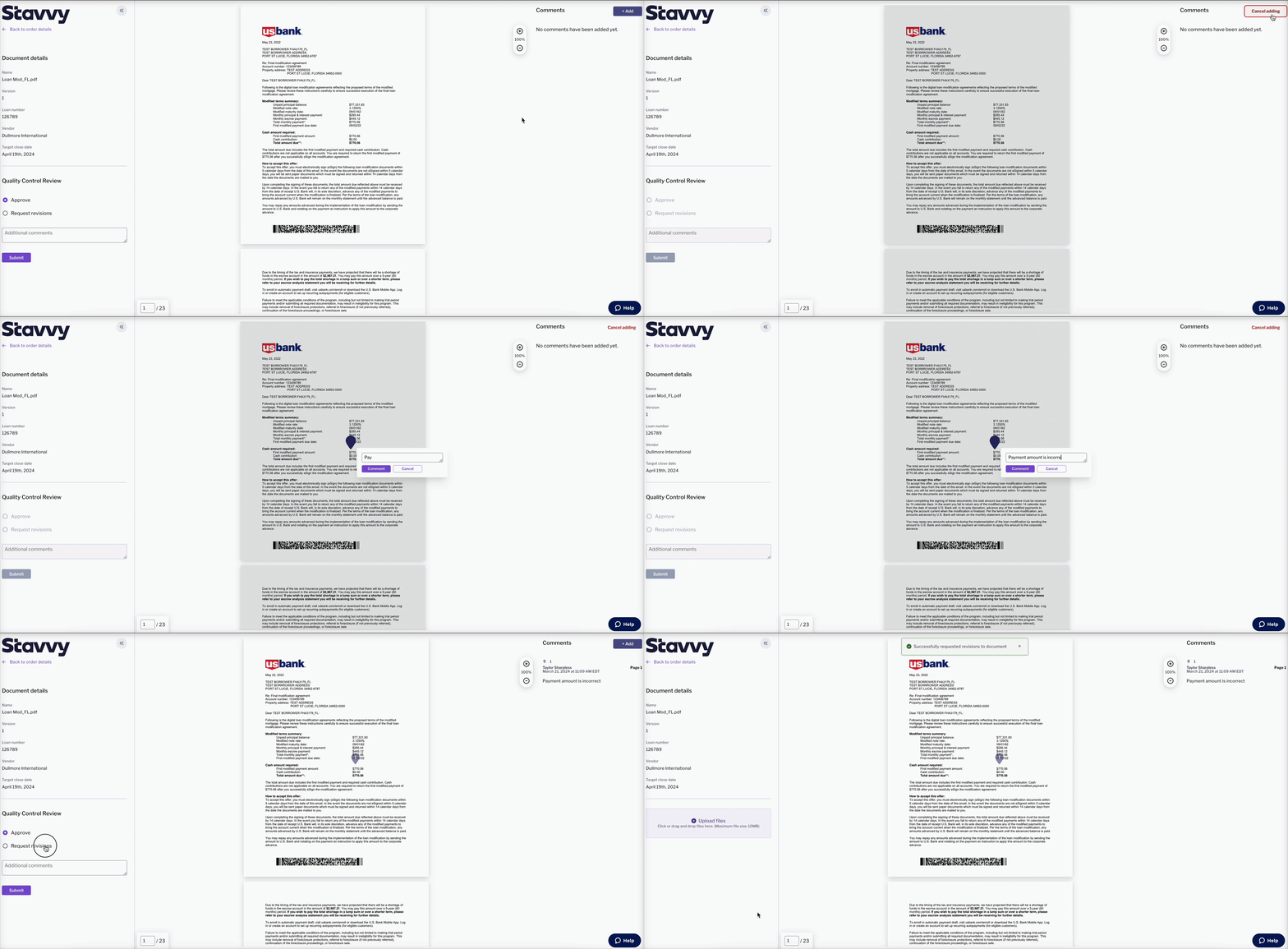
- Once all comments are added, under Quality Control Review on the left, select Request Revisions and then submit
- The Attorney/Firm will receive a Revisions Requested notification.
- Attorney/Firm will revise the documents and upload the modified version
- Notification of the revised documents will be sent to your account
- You will review the new documents and check off Approve under Quality Control Review
- If needed, a Meeting can be scheduled to sign and notarize the documents
3. Foreclosure Meeting
- To create the Foreclosure Meeting
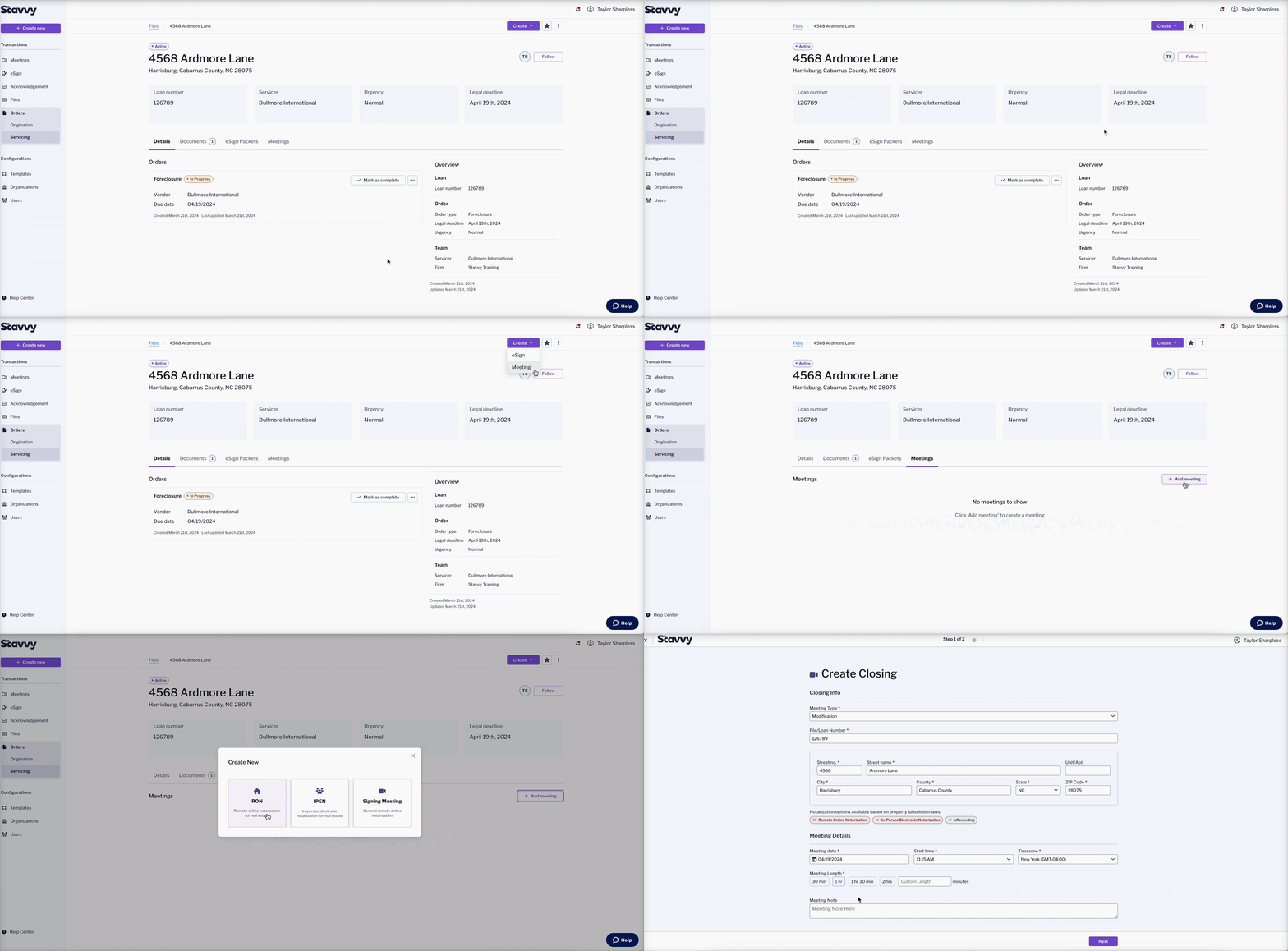
- Go to the Meetings tab and click the +Add meeting button
- Or click Create at the top right of the Files page and select Meeting
- Select RON
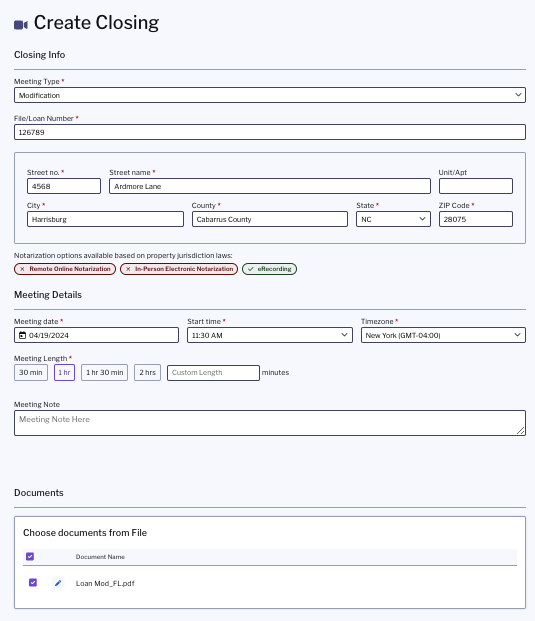
- You will be brought to the Create Closing screen.
-
Modification will be selected as the Meeting Type
- Select meeting time, date, and select the document(s) from the file to add
- Add notary and all signers, once all parties are added select Create and send invites
- Place all annotations for notary and signers on the document
- At this time the Servicer/Lender can initiate the meeting via the Join button on the top right of the screen or by the email invitation
- Once Meeting has been completed, the document(s) will show as finalized, and the documents and the audit trail will be available for download.
4. Mark Order as Complete
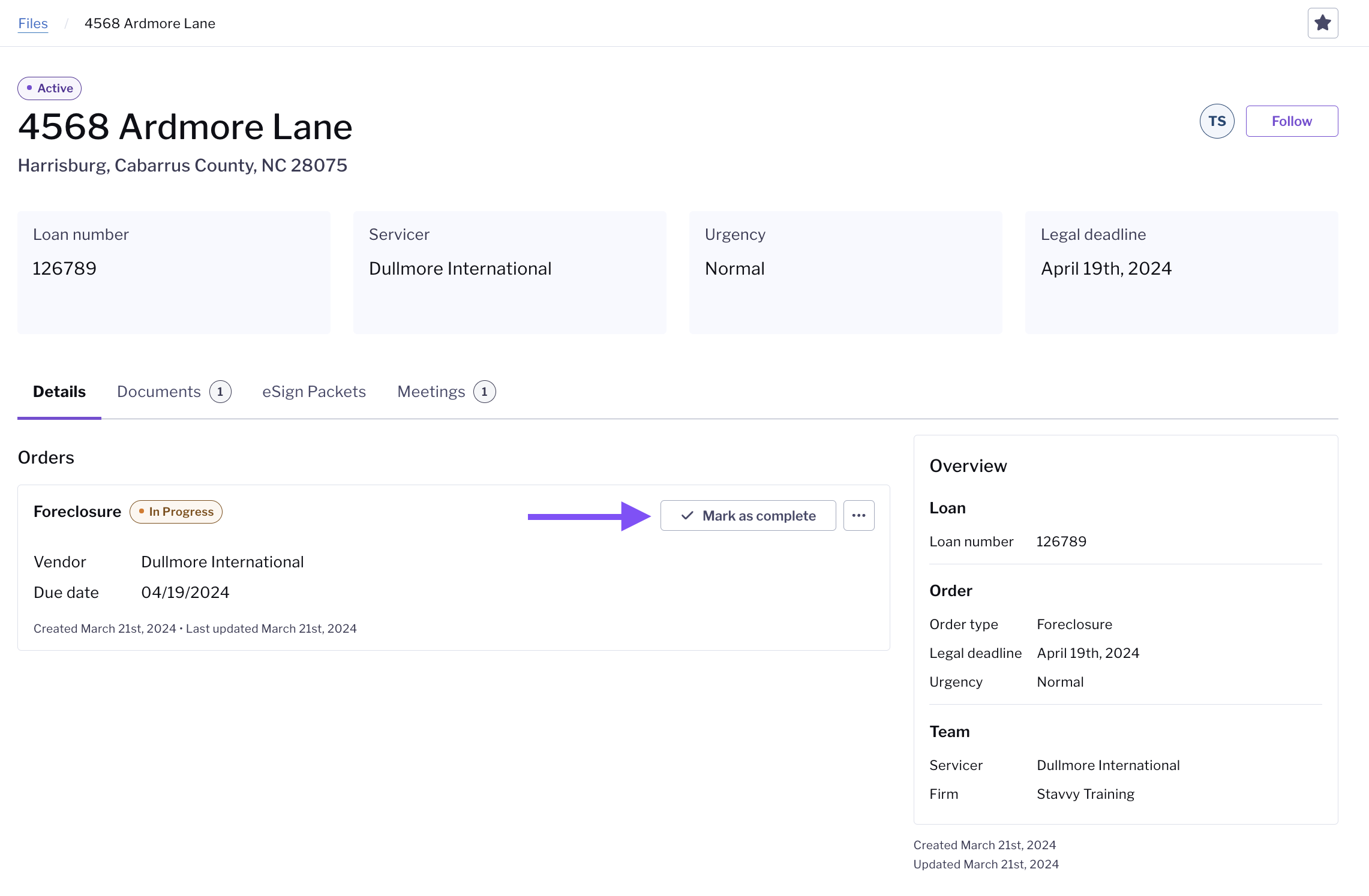
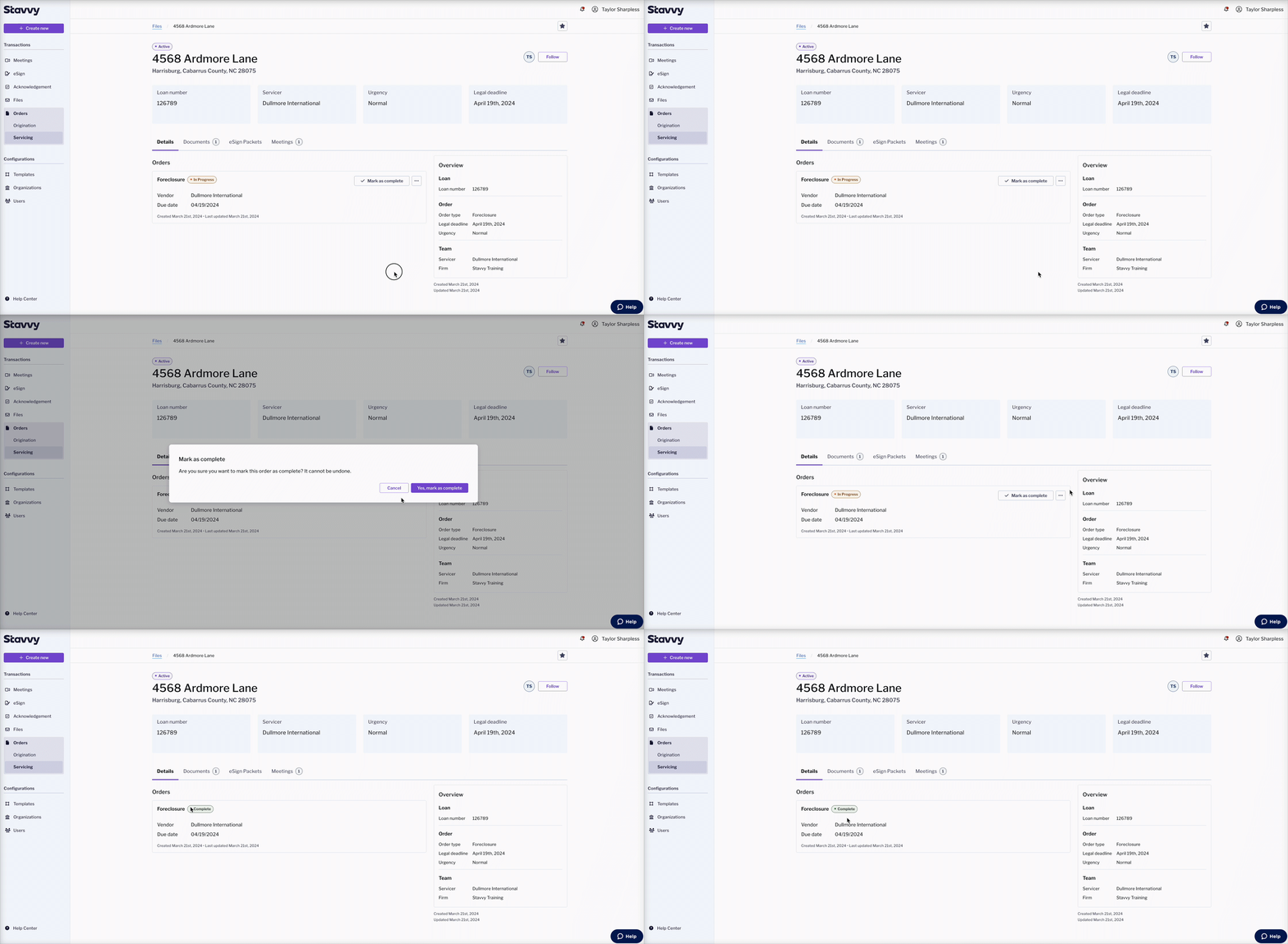
- Once the Meeting is complete and documents are finalized, head back to the Order page
- Under the Details tab, click Mark as Complete
Comments
0 comments
Please sign in to leave a comment.